Cancel Your Shopify Subscription (Complete Guide)
Step-by-step guide to canceling your Shopify subscription. Covers data export, domain transfer, and common pitfalls to avoid.
TL;DR — : This comprehensive guide covers how to cancel shopify subscription with practical implementation strategies, expert insights, and actionable recommendations for e-commerce success.
What is introduction?
If you're switching to a more cost-effective platform or seeking better integrations, knowing how to cancel your Shopify subscription is essential. Considering alternatives? Check our Shopify vs Etsy comparison before making the switch.
How does the 3 steps before cancelling your shopify subscription work?
Back up your store data
Before taking any steps to cancel your subscription, it is important to secure all your valuable store data:
- Export order data:Navigate to Orders > Export in your admin panel to download complete order history in CSV or Excel format.
- Export product information:Go to Products > Export to save all product details, including images, descriptions, and variants.
- Back up customer lists:Access Customers > Export to preserve your customer database, including contact information.
- Save financial records:Download all transaction history, tax reports, and payment records for future reference.
Complete outstanding orders
Ensure that all customer commitments are fulfilled before proceeding:
- Process Pending Orders:Fulfilling and shipping any orders currently in progress.
- Notify Existing Customers:Sending communications about your store status, especially for subscription-based products.
Settle all outstanding payments
Clear any financial obligations to avoid unexpected charges:
- Check unpaid invoices:Review billing history to identify and settle any outstanding amounts.
- Cancel third-party app subscriptions:Many apps bill separately from Shopify, so remember to cancel these subscriptions individually.
What is cancel shopify subscription?
1. Log into Your Shopify Admin Panel
Start by accessing your store's backend:
1. Visitshopify.comand clickLog in.
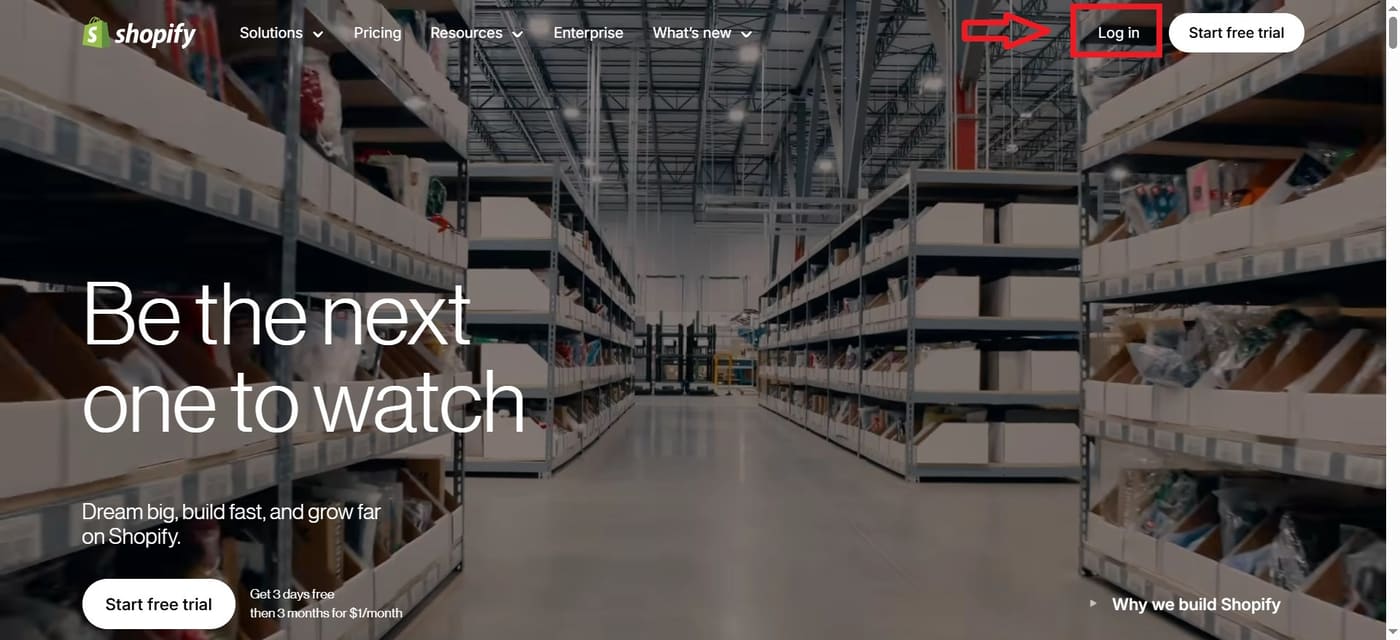
2. Enter your credentials to access your admin dashboard.
2. Access Settings Menu
Once logged in:
- Look for the gear icon (⚙️) in the bottom left corner of your dashboard.
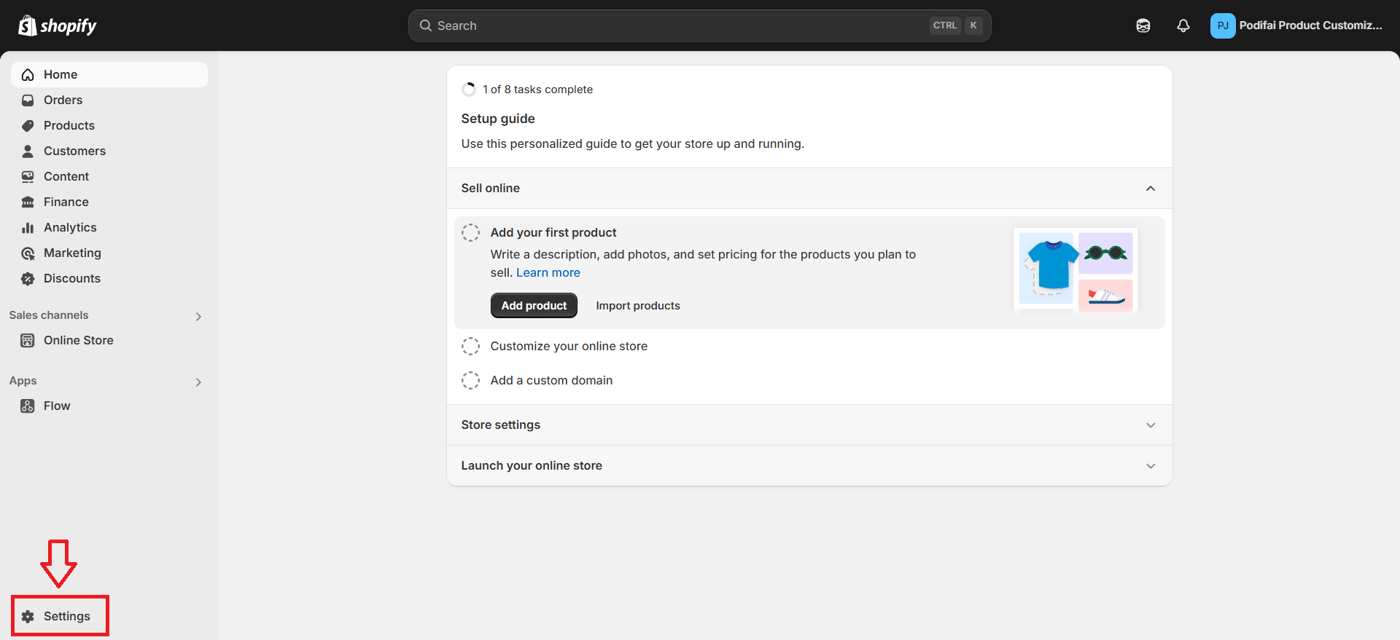
- Click on it to open the Settings menu.
3. Locate the "Plan" Option
Within the Settings menu:
- Locate and click on "Plan" in the settings sidebar.
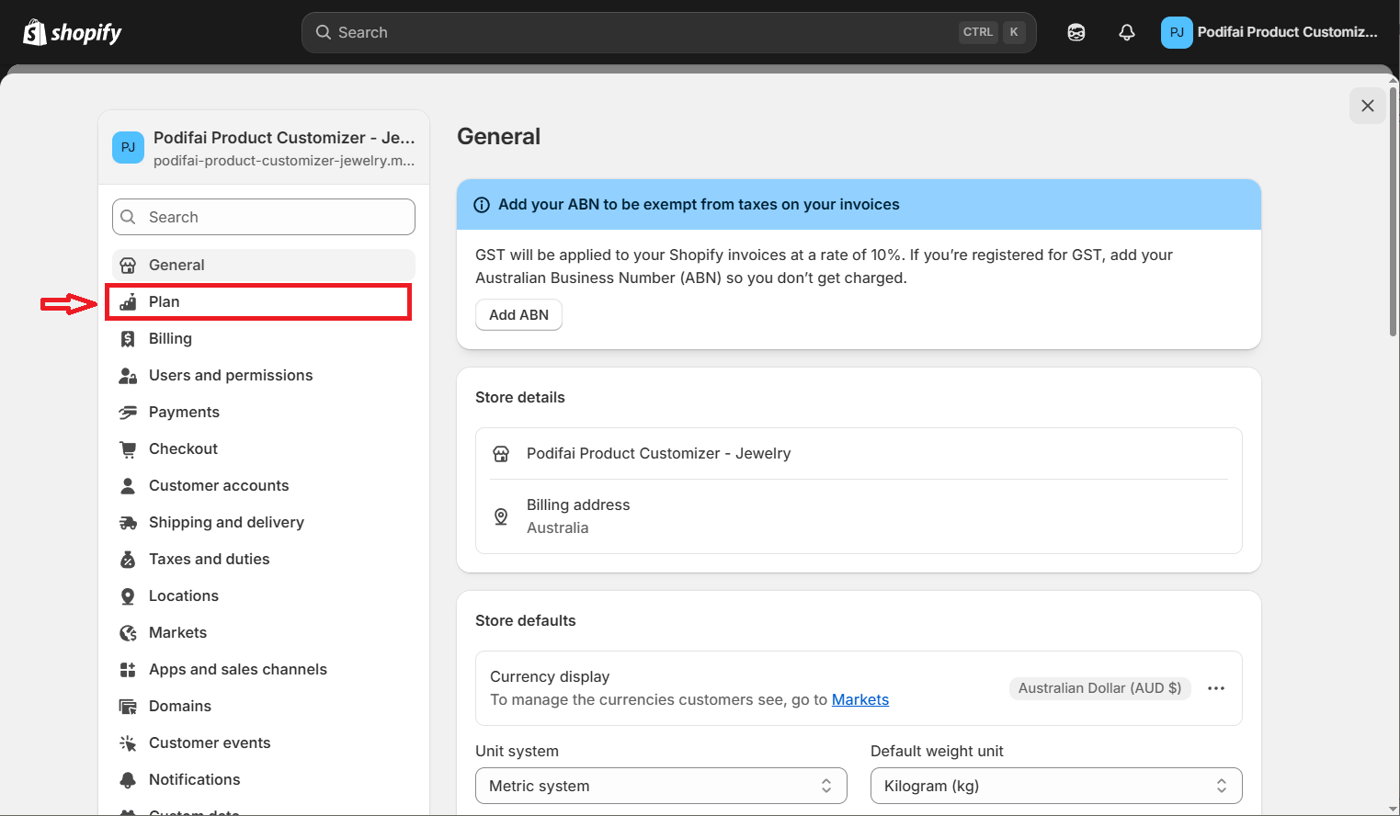
2. This will display your current plan details and options.
4. Execute the Cancellation Process
To formally cancel your subscription:
1. Scroll down to find the "Cancel plan" button (usually at the bottom of the page).
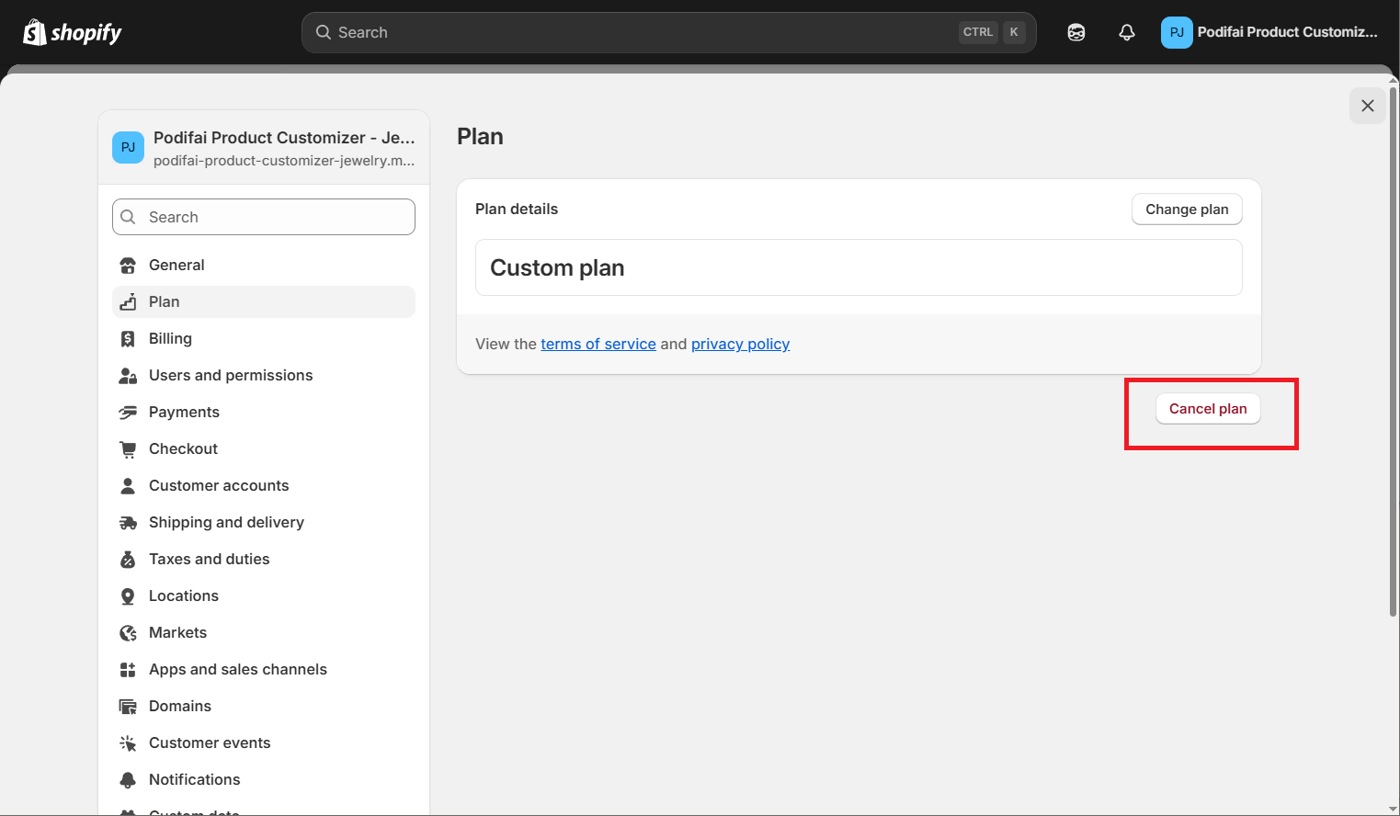
2. Click this button to initiate the cancellation process.
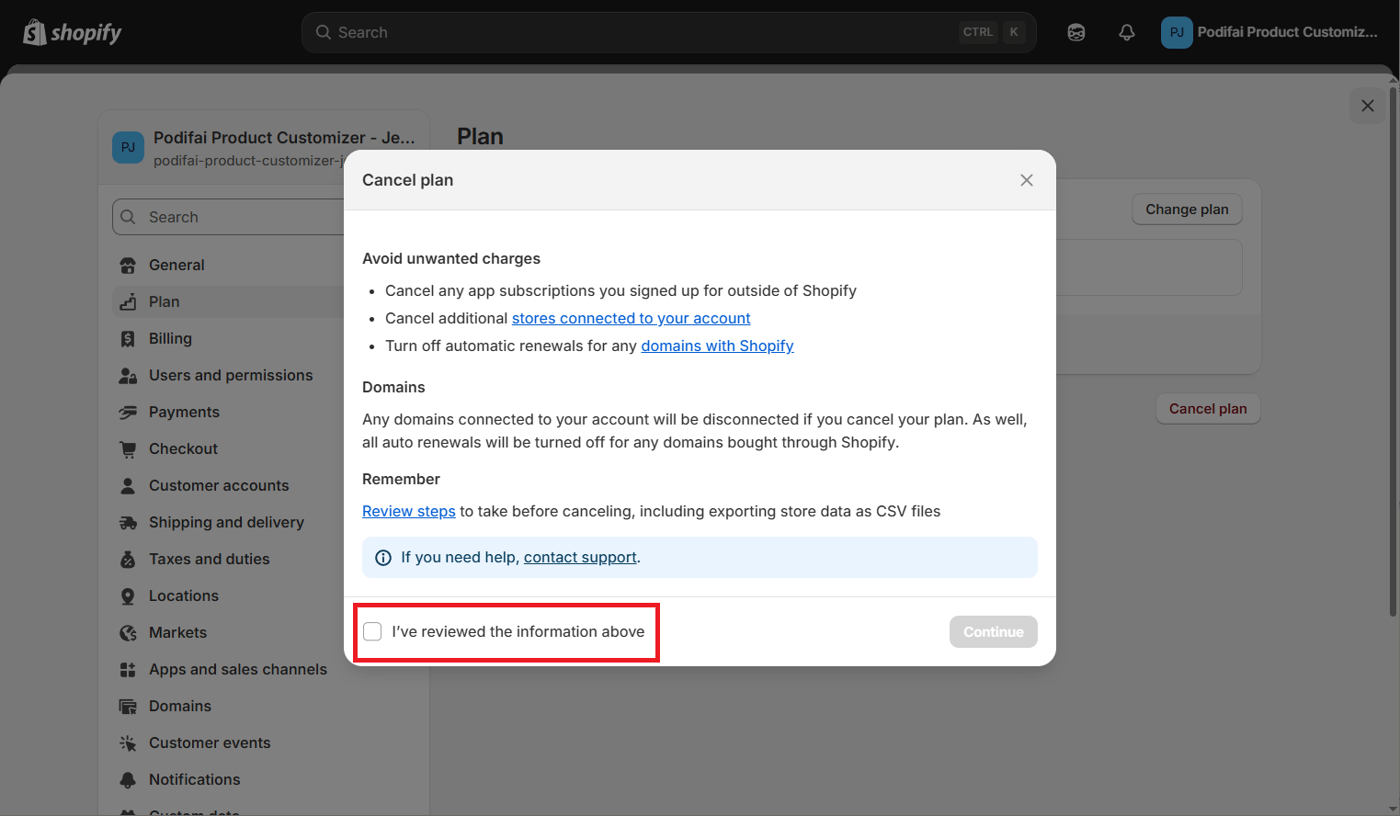
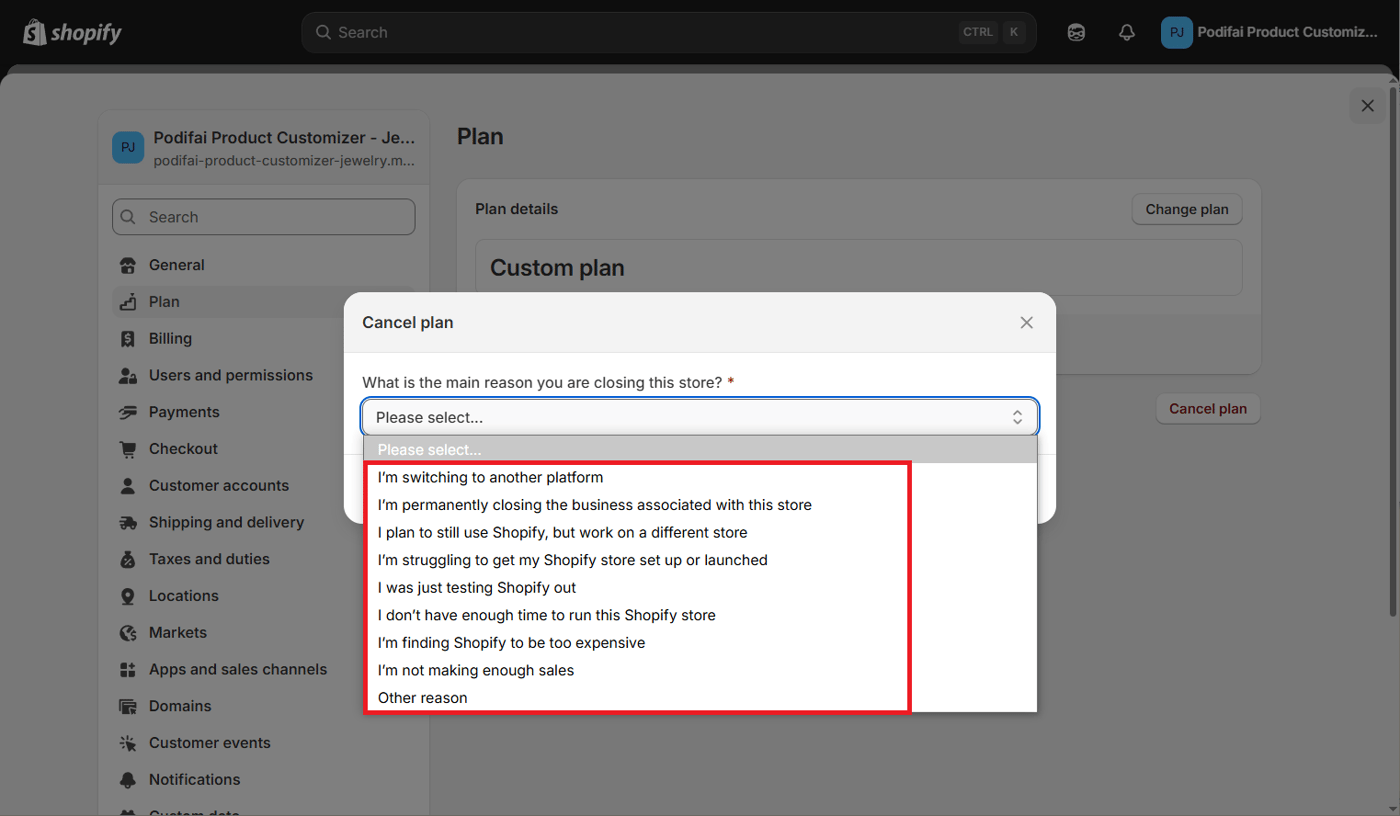
3. Shopify will ask for your reason for cancelling - select the most appropriate option.
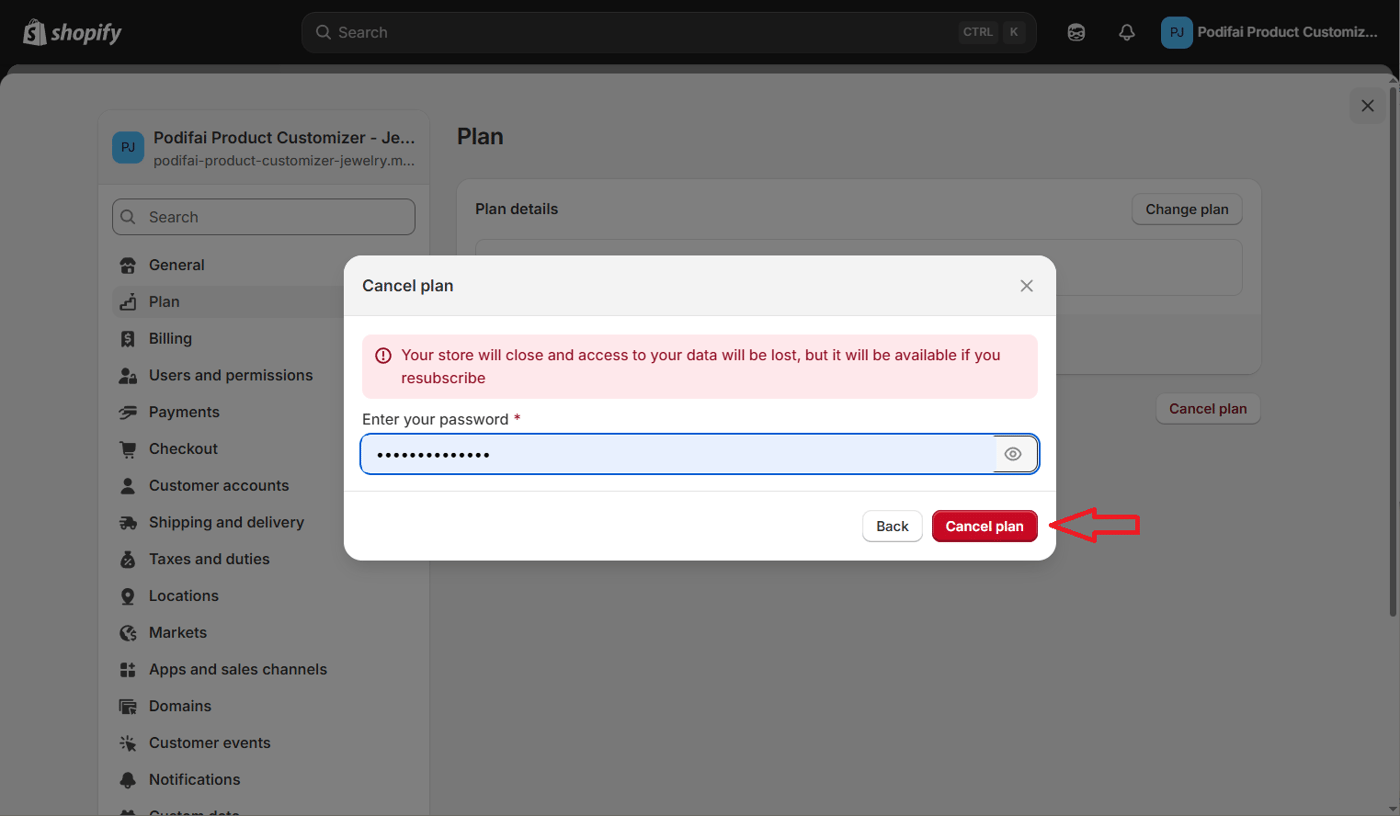
4. Enter your password and confirm your decision.
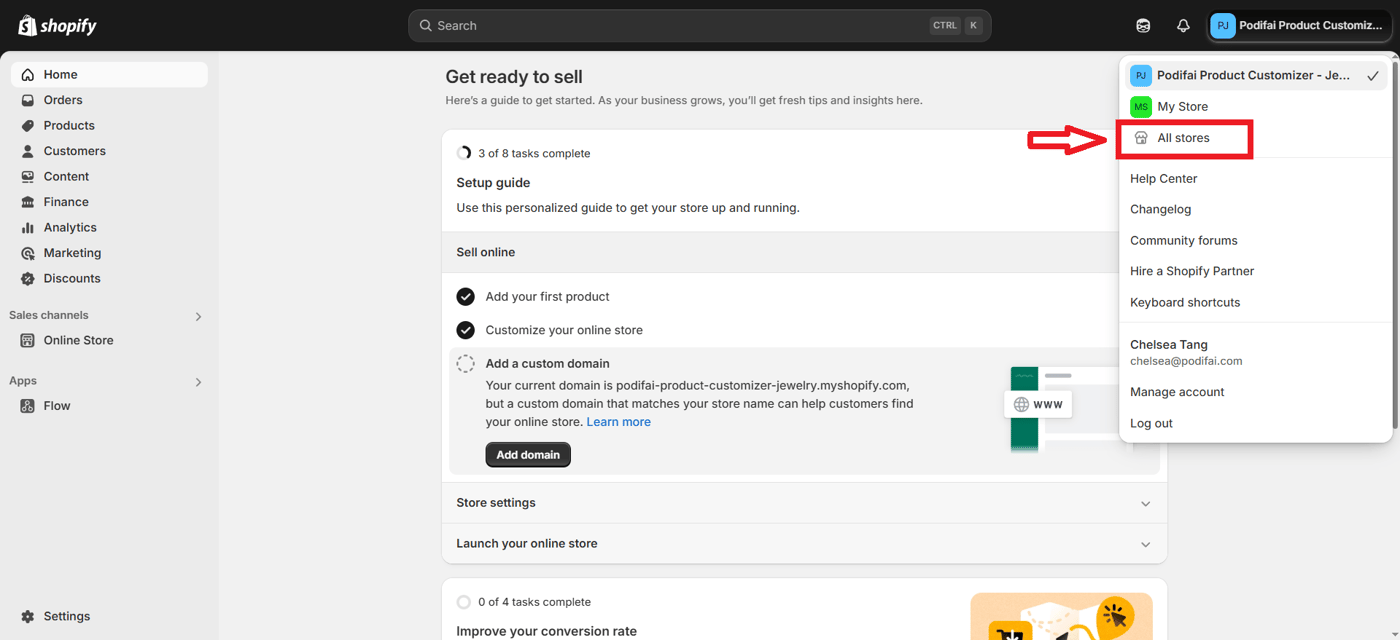
5. If you need to cancel the Shopify plans for multiple stores, you must do so individually for each store. In the top-right corner of the admin page, click the current store name, then select "All stores" to view your list.
5. [Important] Cancel App Subscription
Don’t forget to cancel the app subscription, if it no longer fits your needs or budget. Follow these steps:
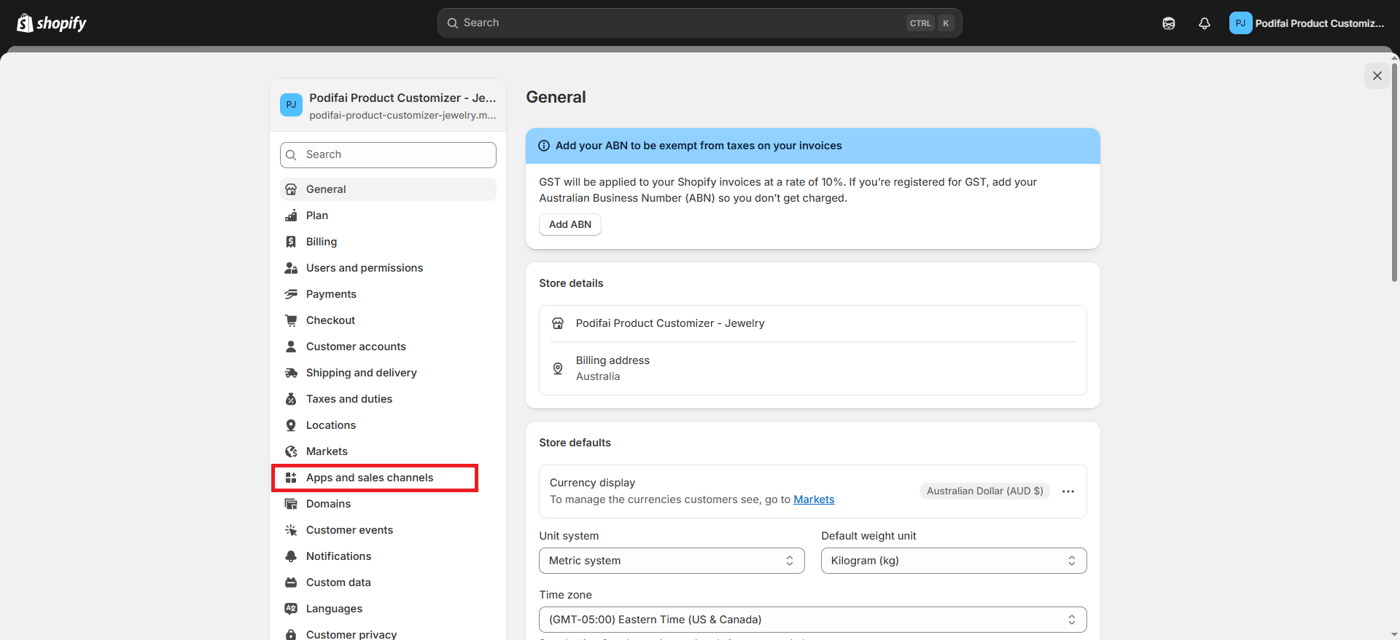
1. Within settings page, select “Apps and sales channels” button in the left sidebar.
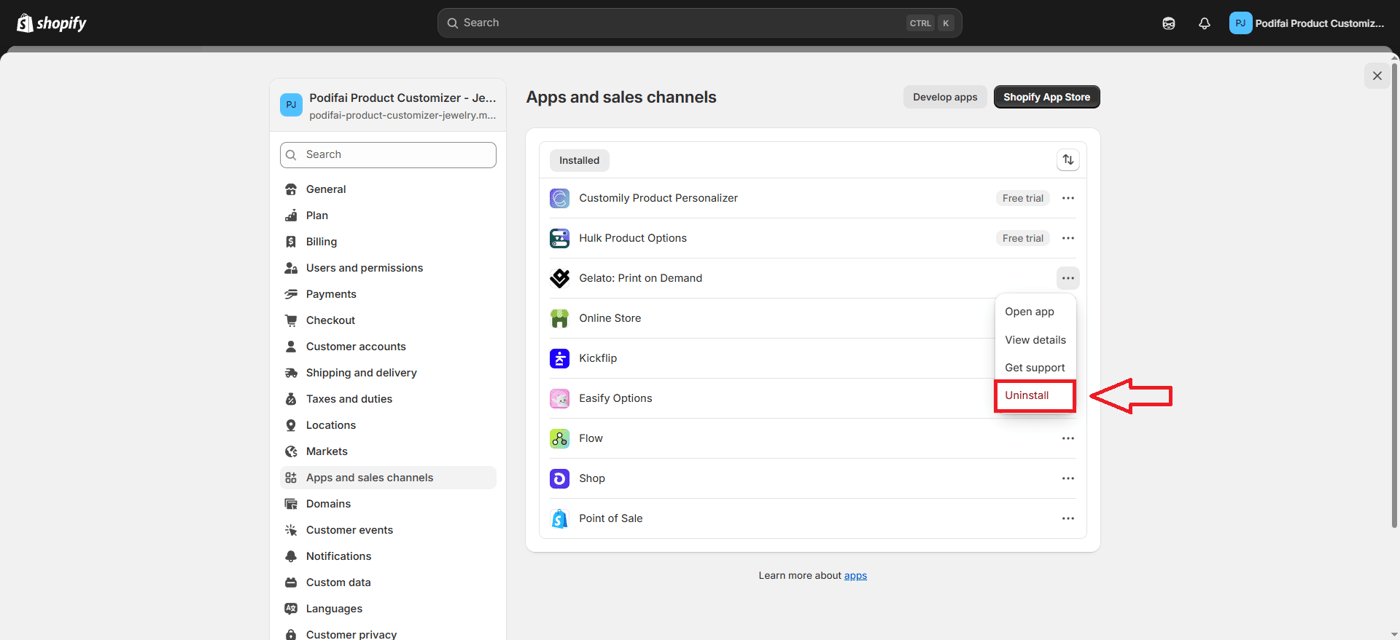
2. Locate the app you want to cancel subscription from. Tap the “···”on the right. Open the submenu, then click “Uninstall”.
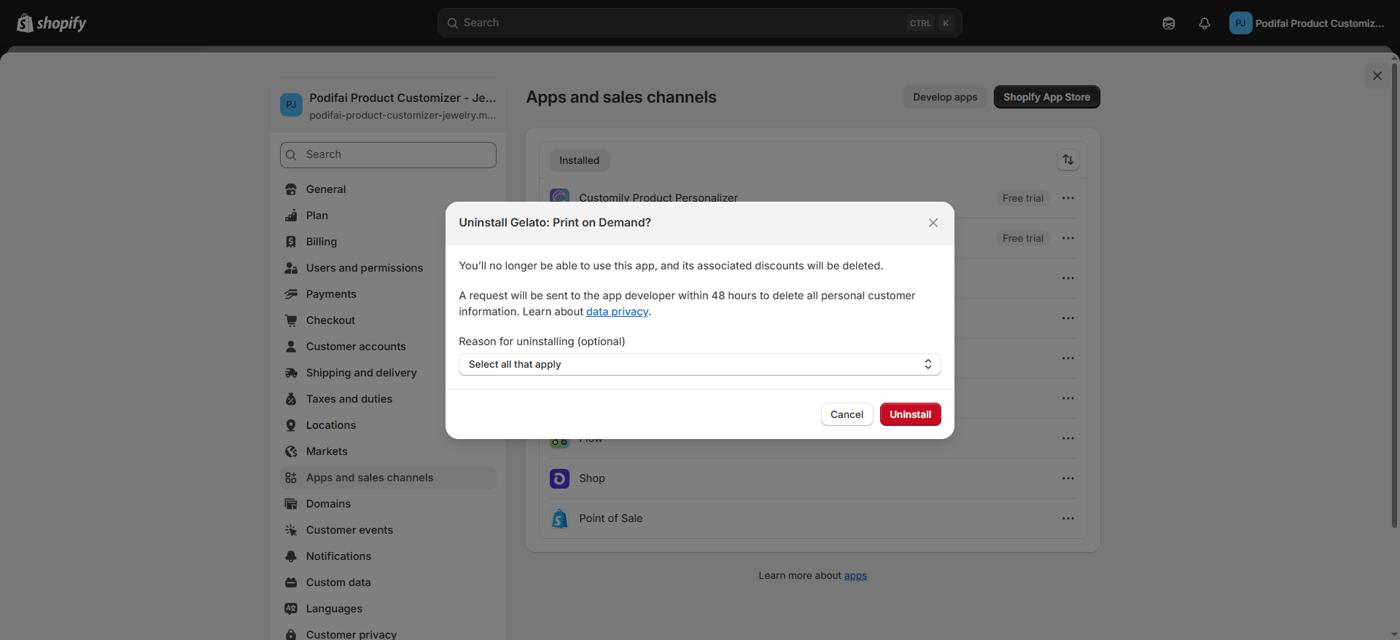
3. Confirm the cancellation of app subscription.
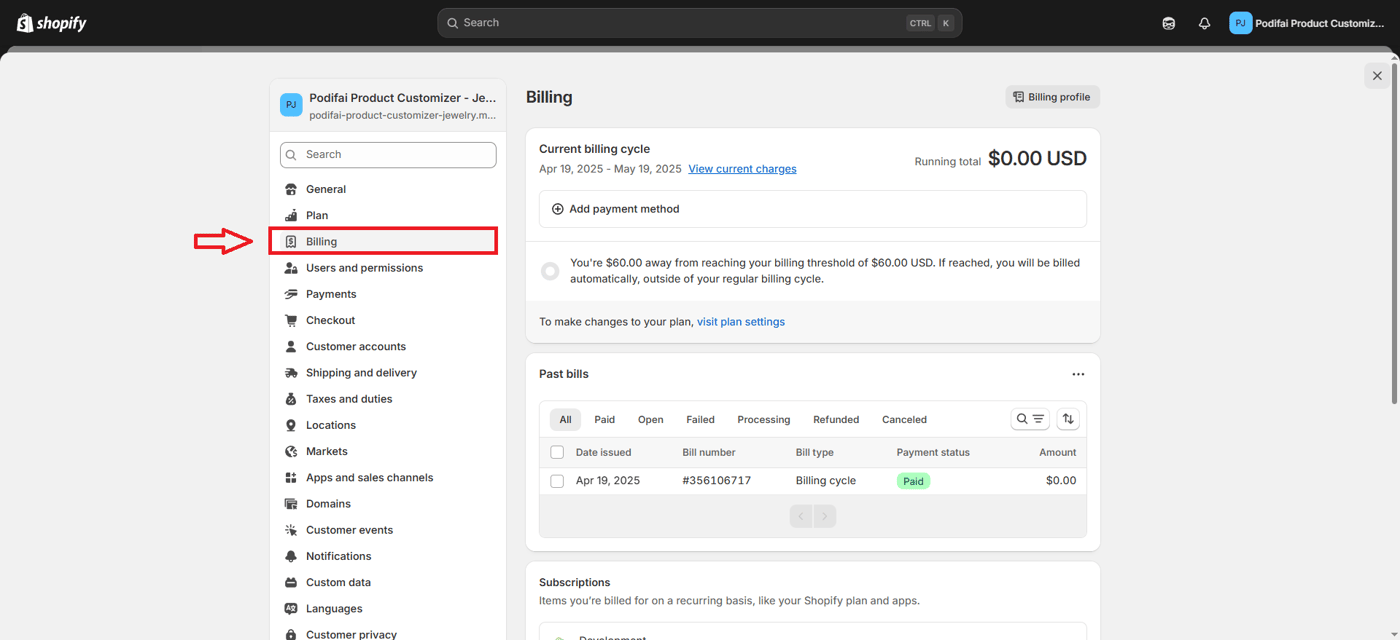
4. Typically, when you uninstall an app from your Shopify store, the subscription is canceled automatically. To confirm, review your billing by navigating toSettings > Billing.
6. Completely Delete Your Shopify Account
For those wanting a complete break:
- Contact Shopify Support:Account deletion requires direct contact with support.
- Data Deletion Timeframe:Allow up to 14 days for complete data removal.
- Consequences of Permanent Deletion:Understand that once deleted, all data is irretrievable and store recovery becomes impossible.
Pause Instead of Cancel
Consider a temporary pause if you still wish to explore Shopify’s has :
- 2025 Pause Plan Details:Shopify's Pause and Build plan costs $9/month in 2025, significantly lower than standard plans.

- When to Choose Pause:Ideal for seasonal businesses, temporary breaks, or when redesigning your store while maintaining data.
Frequently Asked Questions
Q1: Can I reactivate my store if I change my mind after cancelling my Shopify store?
A: Yes, if reactivated within 90 days, your store data will be restored. After 90 days, your store data remains available for up to 2 years, but you'll need to contact Shopify Support.
Q2: What special considerations apply when cancelling a Shopify app subscription?
A: Before you cancel, it's important to back up any important data associated with the app. Some apps may remove this data when uninstalled, leading to the potential loss of valuable information.
How does the conclusion and next steps work?
Cancelling your Shopify subscription can be smooth if you follow the steps: back up your data, complete pending orders, and settle outstanding fees. If you encounter any issues during the process, contact Shopify support via email for assistance.
Atpodifai.com, we specialize in helping Shopify merchants improve their e-commerce operations across platforms. Whether you're looking to fully migrate from Shopify or seeking better integration solutions, our team can guide you through the process.
Q2: Do I get a refund when I cancel my Shopify subscription?
A: Shopify operates on a no-refund policy for monthly or annual subscription fees. However, if you cancel before your next billing cycle, you won't be charged for the following month. Your store remains active until the end of your current billing period, giving you time to export data or complete pending orders.
Q3: What happens to my domain when I cancel my Shopify store?
A: If you purchased your domain through Shopify, you retain ownership and can transfer it to another registrar or hosting provider. For domains purchased elsewhere, simply update your DNS settings to point to your new platform. Your .myshopify.com subdomain will become inaccessible once the subscription ends.
Q4: How long does it take to cancel a Shopify subscription?
A: The actual cancellation process takes only a few minutes to complete through your admin dashboard. However, we recommend allowing several hours to properly back up your data, export customer information, and complete any outstanding orders before initiating the cancellation process.
Q5: Can I pause my Shopify store instead of canceling completely?
A: Yes, Shopify offers a 'Pause and Build' plan for $9/month that keeps your store data intact while making it inaccessible to customers. This option is perfect for seasonal businesses, temporary breaks, or store redesigns. You can reactivate your regular plan anytime without losing any data or customizations.