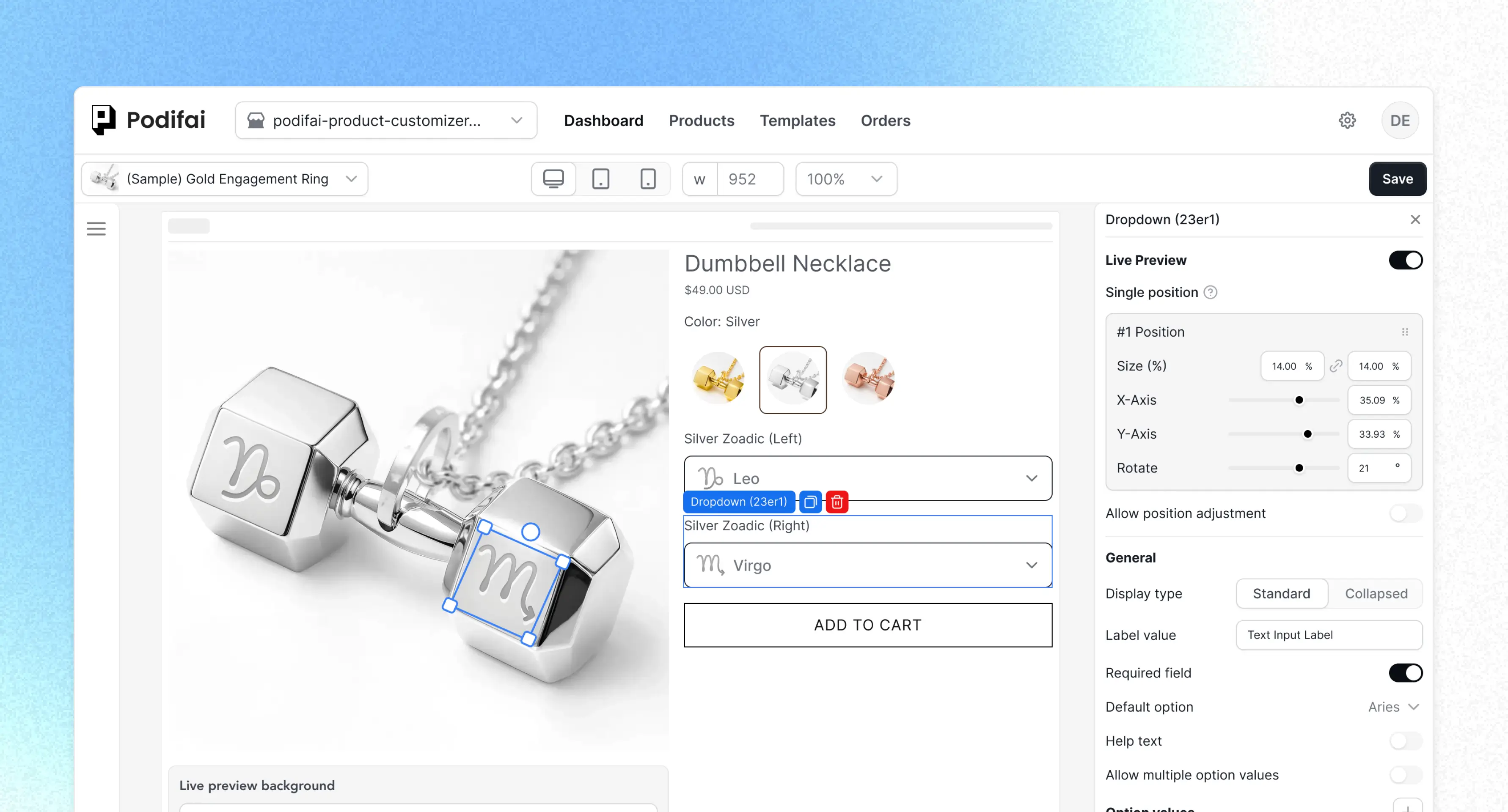
Shopify Engraving Product Customizer

Collect engraving text, approved fonts, placement, logo uploads, pricing, and production-readable order details on one Shopify product page.

Text and logo inputsLayered 2D previewEngraving price add-onsReadable Shopify order data
Podifai engraving product workflow
Podifai text engraving customizer with live product preview

Direct answer

Use variants for inventory. Use product options for the engraving request.

For most Shopify engraving stores, the right setup is a combination of Shopify variants and product options. Use variants for inventory-bearing choices such as material, size, finish, or a physical blank. Use product options for shopper-entered engraving text, font, placement, logo upload, and other instructions that do not create a separate SKU for every possible answer.

Podifai covers the storefront and order-capture layer: it can collect text and image inputs, apply character limits and conditional logic, show supported personalization on a live product preview, add engraving charges, and save the selections with the Shopify order. It does not currently generate SVG, DXF, or machine-ready laser files, so production artwork still needs a separate preflight step before it reaches the engraver.

For one visible product face, merchants can configure separate text or image layers for multiple engraving zones. Front-and-back values can also be collected in separately labeled fields, but Podifai does not yet provide full multi-side preview switching. The safest workflow is to preview only what the storefront can represent accurately, then let the production team validate every side, font, dimension, and artwork file before running the machine.

Base product

Keep inventory-bearing material, color, and size choices in Shopify variants

Engraving request

Collect text, font, placement, uploads, and pricing as product options

Order handoff

Preserve readable selections in Shopify and Podifai order data

Capability boundary

No CAD, laser control, vectorization, or automatic production-file generation

Data model

Variant or product option?

Shopify distinguishes the merchandise being purchased from custom information attached to that cart line. Its developer documentation explicitly uses engraving text and file upload as examples of line item properties.

See the Shopify product template documentation. Sources and competitor capabilities reviewed July 16, 2026.

Merchant choiceRecommended modelWhyPodifai setup
Material, size, finish, or blank productShopify variantThese choices can change SKU, inventory, availability, weight, or the base product price.Link the relevant Podifai option value to the Shopify variant when the storefront needs a richer selector.
Engraving text, initials, date, or messageProduct optionThe shopper enters an open-ended value; creating a variant for every possible answer is not workable.Use Text Input or Text Area, make it required when needed, and set a surface-specific character limit.
Font or engraving styleUsually product optionA font normally changes the artwork, not the stocked item. Use inventory only if a production choice is genuinely capacity- or stock-constrained.Link Font Swatch to the text field so the selected font updates the preview.
Front, back, inside, outside, or engraving zoneProduct optionPlacement is production instruction unless it represents a separately stocked product.Use a placement selector plus conditional fields for each supported zone.
Fixed engraving feeProduct option price add-onThe charge belongs to the selected personalization, not to a new inventory combination.Use a fixed surcharge. Use Add variant price only when the charge should follow a linked Shopify item.

Surfaces and zones

Single-side, double-side, and multi-area engraving

Name every shopper field using the same zone labels used by the production team. That removes interpretation between the Shopify order and the artwork preflight step.

One engraving area

Name on the front of a pendant

Podifai: Supported: one text or image input can update a positioned preview layer on the product image.

Production:Set the field limit from the tested engravable width, not from a generic SEO recommendation.
Multiple zones on one visible face

Logo plus serial number on one plate

Podifai: Supported on one canvas: create separate fields and independent layers for each zone.

Production:Name every order field by zone and keep a production map that uses the same labels.

Front and back

Initials on the front, date on the back

Podifai: Partially supported: collect front and back with separate fields, but full multi-side preview switching is not available yet.

Production:Treat each side as a separate artwork area during preflight and verify orientation before engraving.

More than two sides or machine-specific zones

Front, back, lid, and body of a gift set

Podifai: Use separate labeled inputs for order capture. Evaluate a production-file platform when every zone needs an automatically generated file.

Production:Each area needs its own dimensions, coordinate system, artwork, and machine setup.

Product evidence

See the controls used in an engraving option workflow

These Podifai recordings verify the text, font, price, and order controls described on this page. The exact field names, limits, fonts, placement, and production acceptance rules still need to be configured and tested for each merchant's product and equipment.

Set a surface-specific text limit

Make the engraving field required when needed and set the tested character limit for that product area.

Connect approved font choices

Link the font swatch to the shopper's engraving text so the selected style updates the layered 2D preview.

Attach the engraving surcharge

Add a fixed charge to the relevant field or selected value and verify it beside the product option.

Review the saved order data

Inspect the product, selected values, status, price, and preview result in the Podifai Orders tab.

Podifai workflow

Configure an engraving product in six steps

01

Model the sellable product first

Keep inventory-bearing choices in Shopify: product, material, finish, size, and any blank that has its own SKU. Then add an Add engraving selector in Podifai so the personalization workflow only appears when the shopper chooses it.

02

Create one field per production instruction

Use explicit labels such as Front engraving text, Back engraving text, Front font, and Logo upload. Avoid one generic Notes field for information the operator must interpret. Set required states, helper text, placeholders, and a character limit for each surface.

03

Offer only fonts the shop has tested

Upload a controlled font set and link Font Swatch to the engraving text. The storefront preview confirms the shopper's choice, but production still needs the same font installed or the final text converted to vector paths in the downstream artwork workflow.

04

Place preview layers inside the tested area

Position and size each supported text or logo layer over the product image. Podifai can stack independent layers on one canvas. For a back-side field that cannot be shown accurately in the current single view, keep Live Preview off and collect the value clearly instead of showing a misleading mockup.

05

Add pricing without multiplying variants

Use a fixed surcharge for a standard engraving fee. Add separate surcharges for a second side, logo upload, or another service only when the production cost actually differs. Test the displayed total through product page, cart, and checkout.

06

Place and inspect a test order

Confirm that every selected value reaches Shopify as order data and appears in the Podifai Orders tab. The production team should see unambiguous labels, uploaded image links, and the exact shopper text before anyone prepares artwork.

Fulfillment handoff

From Shopify order to the engraving operator

01

Shopper submits the configuration

Podifai attaches the selected text, font, placement, add-ons, and uploaded image URL to the Shopify cart line as customization data.

02

Shopify creates the order

The order retains the customization as line item properties. The same selections are available in Shopify Admin and in Podifai's Orders view.

03

Production performs artwork preflight

An operator checks spelling, zone, dimensions, font availability, image quality, and whether the artwork should remain raster or be converted to vector paths. This step is outside Podifai today.

04

Laser software applies machine settings

The approved artwork is opened in the shop's laser workflow, such as LightBurn, xTool Studio, an Epilog workflow, or another machine-specific tool. Material, power, speed, focus, line behavior, and orientation are production settings, not storefront settings.

05

Operator verifies before the final run

Use the shop's normal proof, positioning, scrap-test, and quality-control process. A storefront preview is a purchase aid; it is not a substitute for machine preflight.

Production reality

What “laser-ready” actually requires

Character limits are physical constraints

There is no universal safe character count. The usable count changes with the engraving area's width, the chosen font, minimum text height, material behavior, and machine resolution. Configure each Podifai text field only after testing the actual product and production setup.

A preview font is not automatically production-ready

LightBurn advises that imported vector artwork containing text needs the font installed on the production computer or the text converted to paths. Limit storefront choices to tested fonts and keep the production font assets or outlined artwork under version control.

Raster and vector artwork serve different jobs

Logos and clean line art often benefit from vector input, while photos are normally raster workflows. SVG and DXF are common vector exchange formats, but file extension alone does not make a job machine-ready; dimensions, paths, layers, line behavior, and machine settings still require validation.

The upload received from a shopper is source artwork

Podifai currently accepts PNG, JPG, JPEG, and WebP images up to 8 MB. Treat that upload as customer-provided source material. It may need cleanup, tracing, background removal, resizing, or rejection before engraving.

Practical references: the Gravotech engraving font guide, the LightBurn file management documentation, and the Epilog graphics setup guidance.

Capability comparison

Podifai, Customily, and Zakeke

This is a workflow comparison, not a winner ranking. The products solve different levels of storefront and production complexity.

ProductStorefrontSides and areasProduction filesBest fit
PodifaiPodifai documentationShopify text and image options, font selection, conditional logic, add-on pricing, and single-canvas live preview.Independent zones on one canvas; separate fields can collect back-side details. Full multi-side preview is not available yet.No automatic SVG, DXF, or laser-ready production file generation today.Merchants who need a focused Shopify buying experience and can keep artwork preflight in their existing production workflow.
CustomilyCustomily Print File SetupPersonalization templates separate the shopper preview from the production file.Multiple print-file pages can produce separate outputs; Customily also documents multiple engraving areas.Documents PNG, JPG, PDF, EPS, DXF, and AI outputs, with format settings based on the production method.Production-driven personalization and POD workflows where generated files are central to fulfillment.
ZakekeZakeke technical documentationVisual customization with text, image editing, engraving effects, plus broader 2D, 3D, and AR capabilities.Models products as sides and print areas, and documents a print-ready file for each customized print area.Documents PDF, PNG, SVG, and DXF print-ready output, including engraving-ready files.Web-to-print and more complex visual-commerce workflows that need automated production outputs.

Expert reading list

Primary sources summarized for this page

Methodology: capability claims come from official product or technical documentation reviewed on July 16, 2026. This page excludes unverified pricing, adoption, revenue, and performance claims.

Shopify documents line item properties specifically for supplementary order information such as monogram or engraving text and customer file uploads.

Used here: Supports the recommendation to keep free-form engraving input in product options/order properties rather than creating a variant for each answer.

Gravotech explains that minimum text size depends on material and laser interaction, and says it generally recommends not going below 0.8 mm text height in most cases.

Used here: Supports product-specific font testing and rejects a universal character-limit formula.

LightBurn documents SVG, DXF, AI, PDF, and other imports, and warns that text in imported vector files needs the font installed or converted to paths.

Used here: Supports the production preflight guidance for fonts and vector artwork.

Epilog distinguishes hairline vector-cut lines from thicker raster-engraving lines and requires workflow-specific artwork settings.

Used here: Shows why a file format by itself is not equivalent to a machine-ready job.

xTool documents SVG and DXF vector import and notes that import dimensions depend on the source file's DPI assumptions.

Used here: Supports treating dimensions and file interpretation as production controls.

Customily maps vector, image, DXF, and embroidery outputs to different production methods and describes DXF as a line-based format for path-driven work.

Used here: Provides a current reference for a competitor that includes production-file generation.

Zakeke describes automated PDF, PNG, SVG, and DXF output alongside live customization and engraving workflows.

Used here: Provides a current reference for a broader web-to-print competitor and clarifies the capability gap Podifai should state openly.

Merchant proof

Used for real engraving and personalization workflows

Verified Shopify App Store reviews from merchants using Podifai for engraving choices, custom apparel, and made-to-order products.

5.0 on the Shopify App Store
I run a custom apparel lab (DTF printing and embroidery) and Podifai has been exactly what I needed to offer personalization directly on my Shopify store. The live customizer works beautifully — customers can see their name, number, and logo on the garment in real time. What really stood out was the support… that level of founder-direct support is rare.
Zena PadelCustom apparel lab (DTF printing & embroidery)
Probably one of the only apps where I genuinely feel that a lot of love and research has gone into it, created by someone who is passionate about providing a solution that is essentially plug-and-play and just works. The fact that it's free is a bonus, but I would genuinely have no issue paying for this app.
CQ Laser Studio
The options available are great for engraving customisations on my products. The support team have been amazing with helping to guide me and make my set up quicker, look and feel the way I hoped. Thank you Podifai team!
M.A.C.E Collective

FAQ

Shopify engraving workflow questions

Should engraving be a Shopify variant or a product option?

Use a Shopify variant when the choice identifies a stocked product, such as material, size, finish, or a blank with its own SKU. Use a product option for open-ended engraving text, font, placement, logo upload, and production instructions. Podifai can add a fixed surcharge or link an option value to a Shopify item when inventory or Shopify-managed pricing is needed.

Can Podifai handle front and back engraving?

Podifai can collect front and back values in separately labeled fields and save both with the order. It currently uses one live-preview canvas, so full front/back view switching is not available yet. Keep preview off for a side that cannot be represented accurately.

Does Podifai generate SVG, DXF, or laser-ready files?

No. Podifai currently captures customization inputs, previews supported layers, prices options, and passes order data into Shopify. A production operator must still prepare and validate the artwork in the shop's design and laser software.

How should an engraving shop choose character limits?

Test the actual product, engraving zone, material, machine, and approved fonts. Set a separate limit for each area. Character count alone is not enough because narrow and wide letters occupy different physical space.

Can customers upload a logo for engraving with Podifai?

Yes. Podifai accepts PNG, JPG, JPEG, and WebP uploads up to 8 MB and can show the image in Live Preview. The upload is source artwork, not an automatically cleaned or vectorized engraving file, so production should preflight it before use.

Is the Shopify engraving customizer free?

Yes for the first 1,000 Shopify stores. All current Podifai features are included in that free eligibility, including text and image inputs, layered 2D preview, fonts, conditional logic, uploads, and dynamic pricing.

5 star rating from Shopify merchants

Add engraving options to Shopify

All current features are free for the first 1,000 Shopify stores. Configure text, fonts, uploads, layered 2D preview, dynamic pricing, and readable order data.