Fix Shopify Out of Stock Issues (4 Solutions)
Fix Shopify's false out-of-stock issues with 4 proven methods. Restore product visibility and recover lost sales for your store.

TL;DR — : Shopify stores lose revenue when products show "out of stock" despite having inventory. This comprehensive guide provides 4 proven methods to fix phantom stock issues: international market settings, variant quantity tracking, shipping rate configuration, and overselling permissions. Resolve these issues in 10-15 minutes to prevent lost sales.
Introduction: The Hidden Revenue Killer in Shopify Stores
Problem Overview
Shopify stores lose revenue when products appear "out of stock" despite having inventory. This guide provides 4 proven methods to resolve phantom stock issues and prevent future occurrences.
Common Causes
- Variant tracking misconfiguration - Individual product variants lack proper inventory settings
- Multi-location fulfillment conflicts - Inventory priority and shipping zone misalignment
- International market restrictions - Products excluded from specific geographic markets
- Third-party app integration failures - Inventory sync issues between Shopify and external systems
Impact on DTC Brands
- Direct revenue loss from blocked sales
- Customer frustration and abandoned carts
- Reduced search ranking due to poor user experience
- Competitive disadvantage in fast-moving markets
Solution Framework
This guide covers 4 step-by-step methods:
- International market inventory settings
- Variant quantity tracking configuration
- Shipping rate troubleshooting
- Out-of-stock selling permissions
4 Proven Solutions for 2025 to Fix Shopify Out of Stock Issues
Method 1: Fix International Market Inventory Settings
Step-by-Step Solution:
- Access Markets Settings:Navigate to your Shopify admin dashboard, go to Settings > Markets
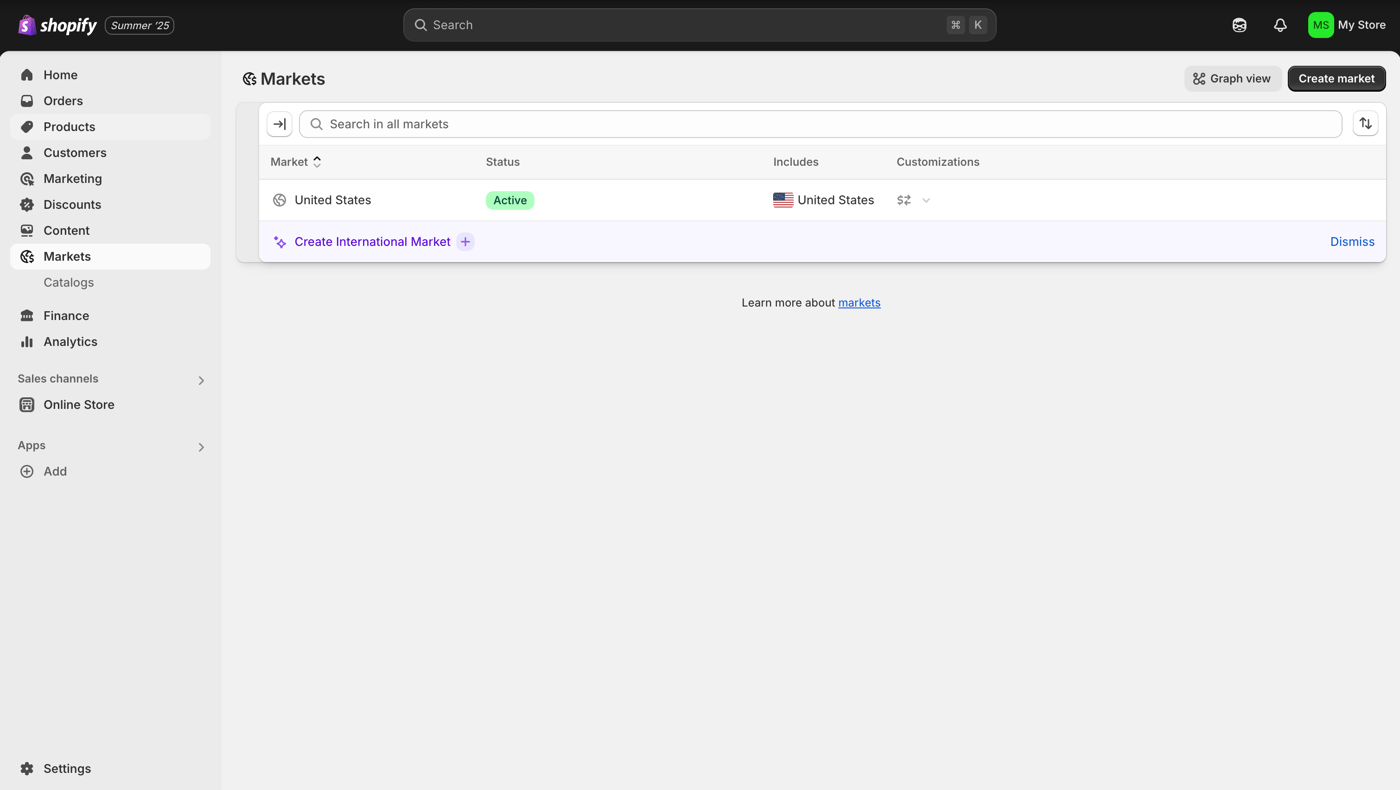
- Select Target Market:Click on the specific market experiencing inventory display issues.
- Manage Product Visibility:Click "Products and pricing" to access market-specific product controls.
- Control Product Availability:For each affected product, you can:
- Configure Fulfillable Inventory:
- Save Changes:Apply your market-specific settings.
When to Use This Method:
- Products showing out of stock only in international markets
- Overselling issues across different geographic locations
- Need to restrict sales to primary market while resolving inventory issues
Method 2: Configure Variant Quantity Tracking
Variant-level inventory tracking is the most common cause of out-of-stock display issues. When products have multiple variants (sizes, colors, styles), each variant requires proper inventory configuration.
Step-by-Step Solution:
Desktop Admin:
- Navigate to Products:From your Shopify admin, go to Products.
- Select Product:Click the name of the product you want to track.
- Access Individual Variants:Click the variant you want to track or click "Edit" beside the variant.
- Enable Quantity Tracking:In the Inventory section, check "Track quantity".
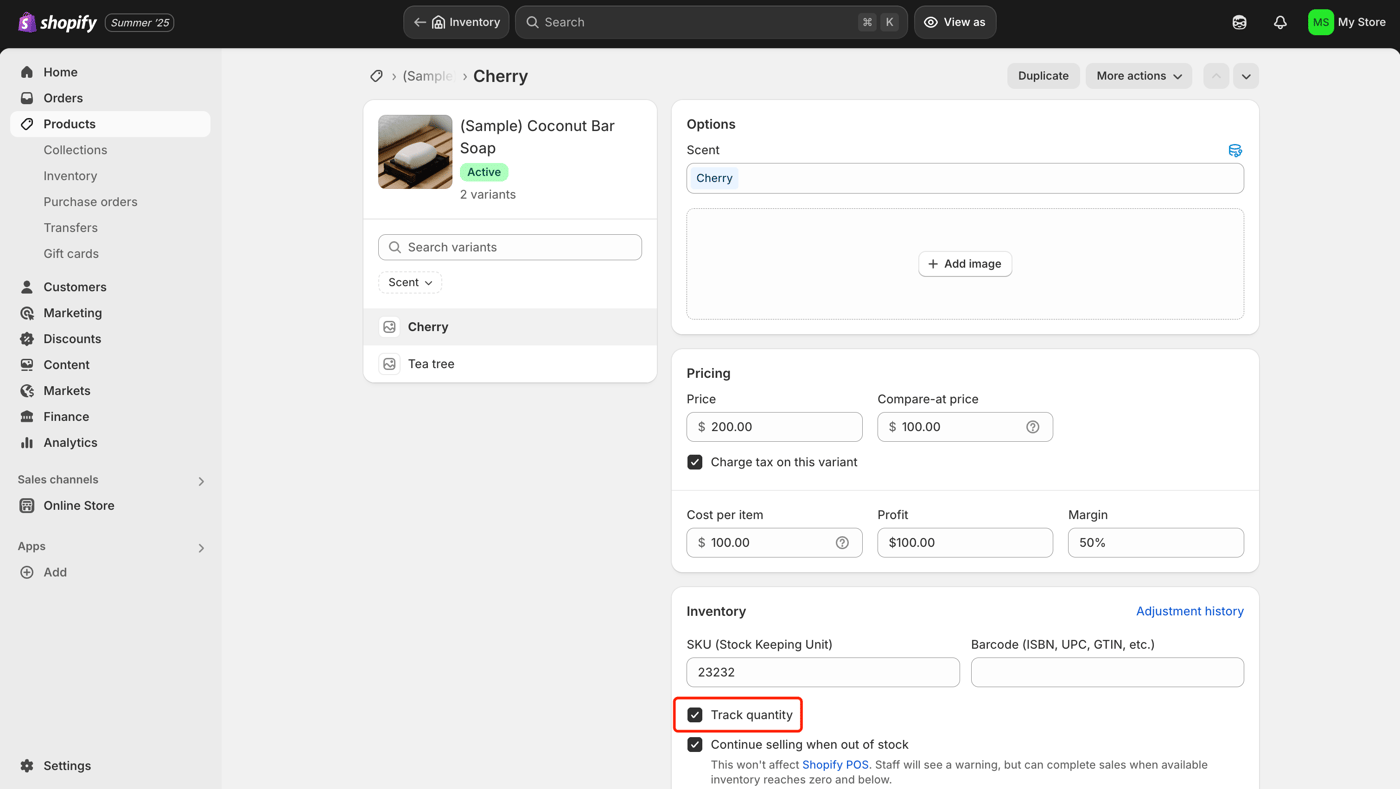
- Configure Stock Levels:In the Quantity section, enter the quantity information for each location.
- Enable Overselling Protection:Check "Continue selling when out of stock" if you want to allow backorders (only available when "Track quantity" is enabled).
- Save Each Variant:Click "Save" after configuring each variant.
Bulk Edit Alternative:For products with many variants:
- From the inventory page, select variants using checkboxes
- Click "Bulk Edit"
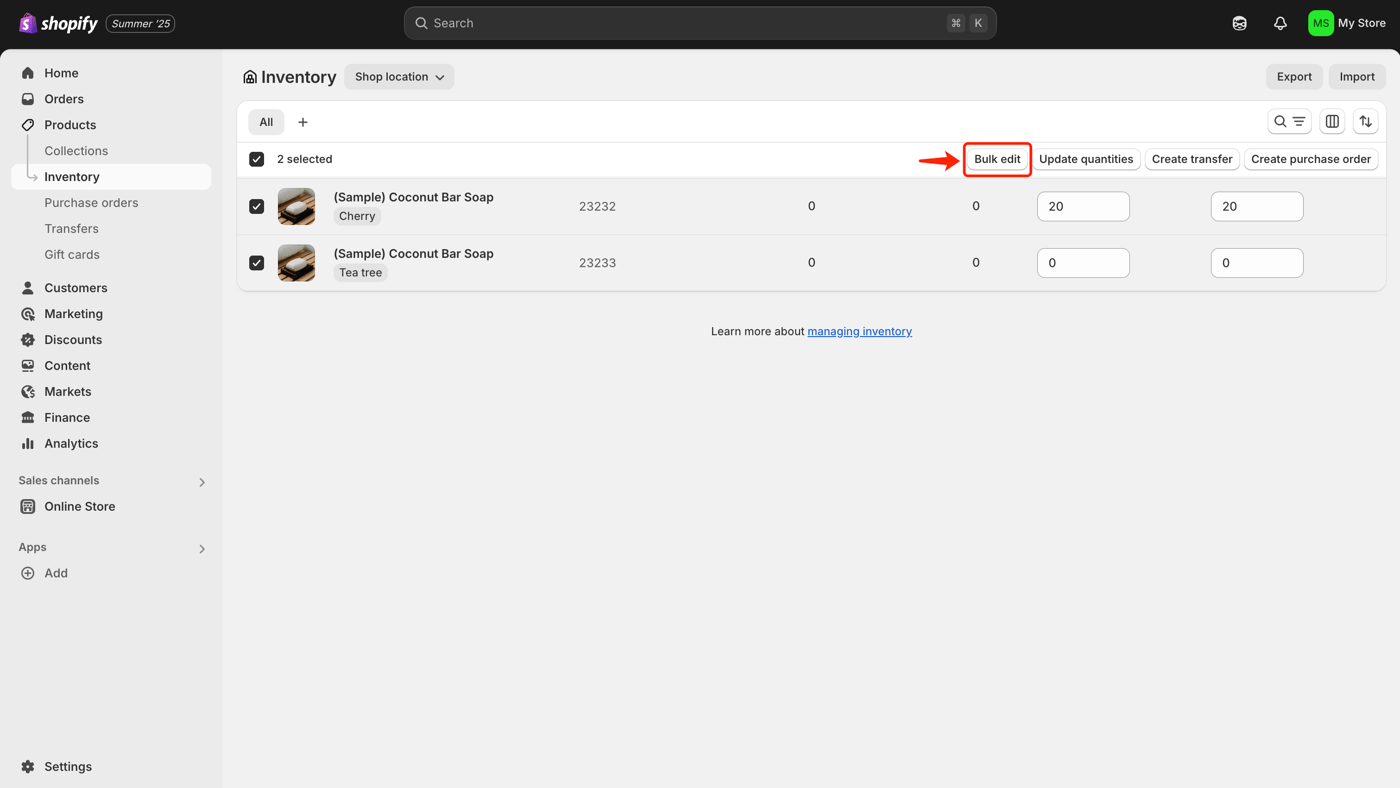
- Adjust quantities for multiple variants simultaneously
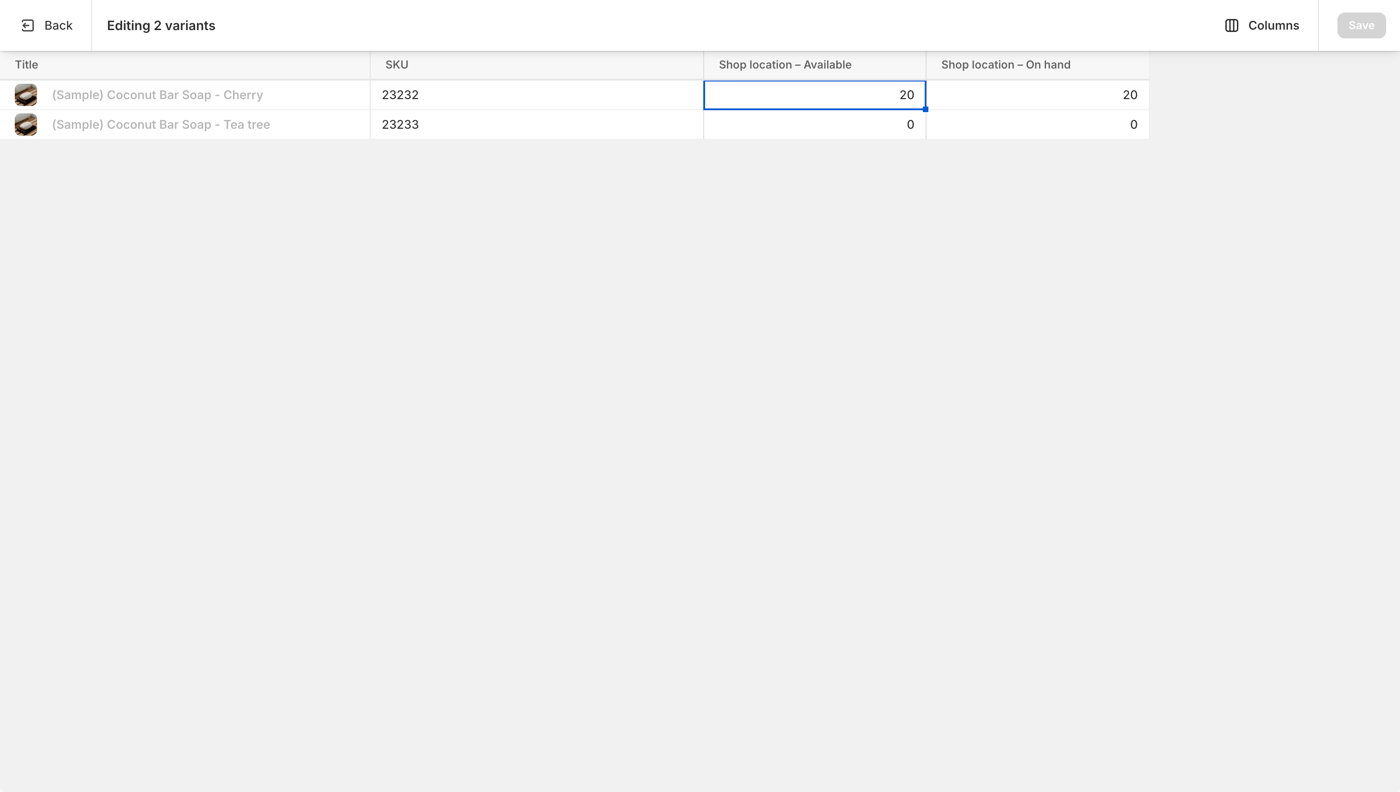
- Click "Save" to apply updates
When to Use This Method:
- important for any product with multiple variants, especially fashion items, electronics with different specifications, or any product line with size/color options.
Method 3: Resolve Shipping Rate Configuration Issues
Step-by-Step Solution:
- Access Shipping Settings:Navigate to Settings > Shipping and delivery in your Shopify admin dashboard.
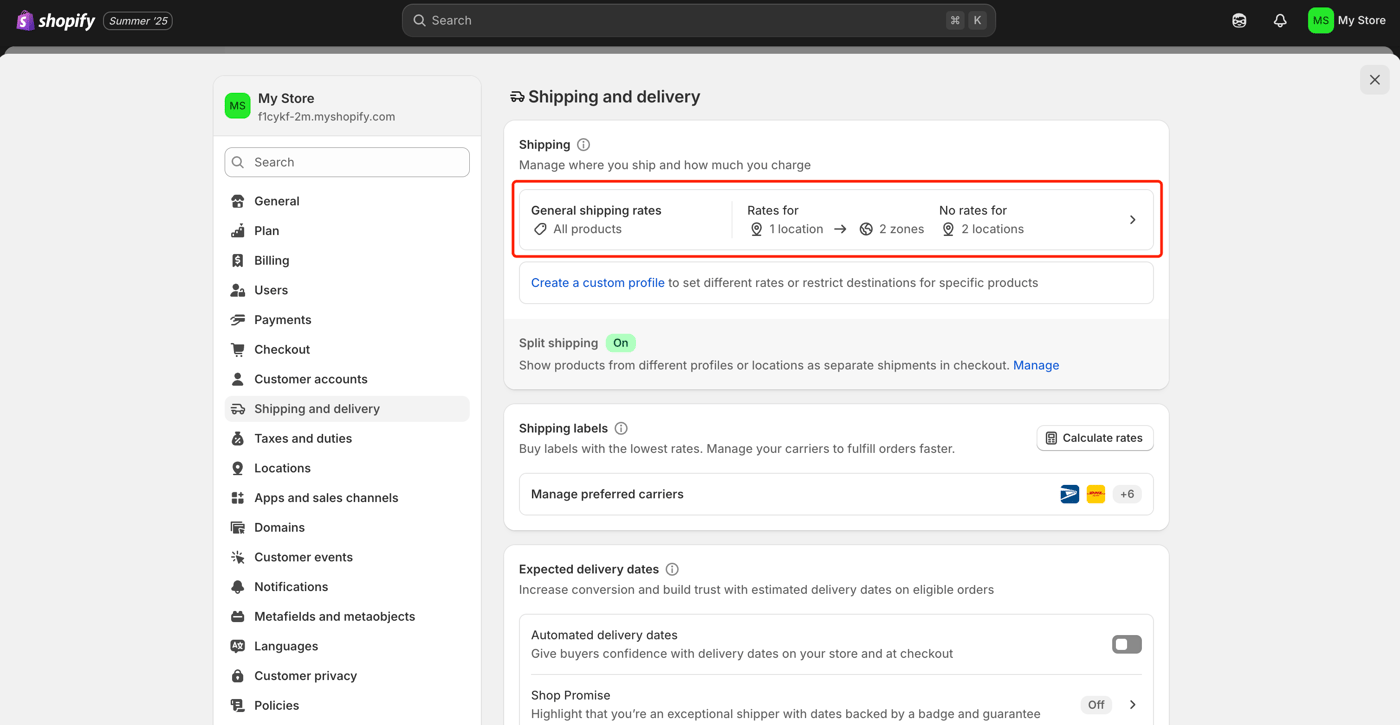
- Verify Market-Zone Alignment:
- Check Shipping Zone Coverage:Review each shipping zone to ensure all target countries have configured rates.
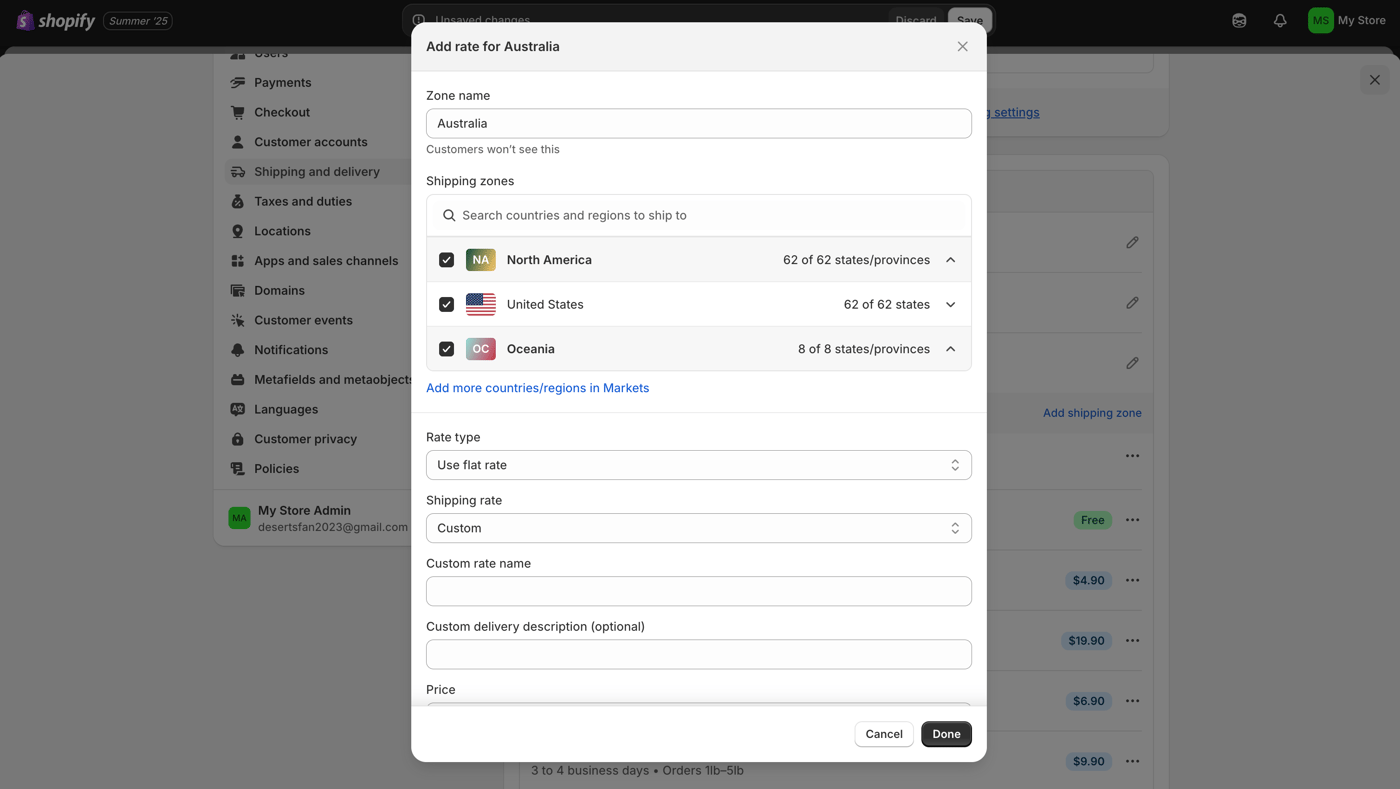
- Add Missing Rates
- Configure International Markets:
- Set Product Requirements:
- Test Checkout Process:Validate complete purchase flow for each market.
When to Use This Method:
- Customers can view products but cannot complete checkout
- International customers receive "shipping not available" errors
- Products appear available but checkout fails at shipping step
Method 4: Enable "Continue Selling When Out of Stock"
Sometimes the simplest solution is allowing sales to continue even when inventory reaches zero. This approach works well for businesses that can quickly restock or fulfill orders through alternative means.
Step-by-Step Solution:
For Products with Variants:
- Navigate to Products > All products
- Select the product with variants
- Check "Continue selling when out of stock" for each variant
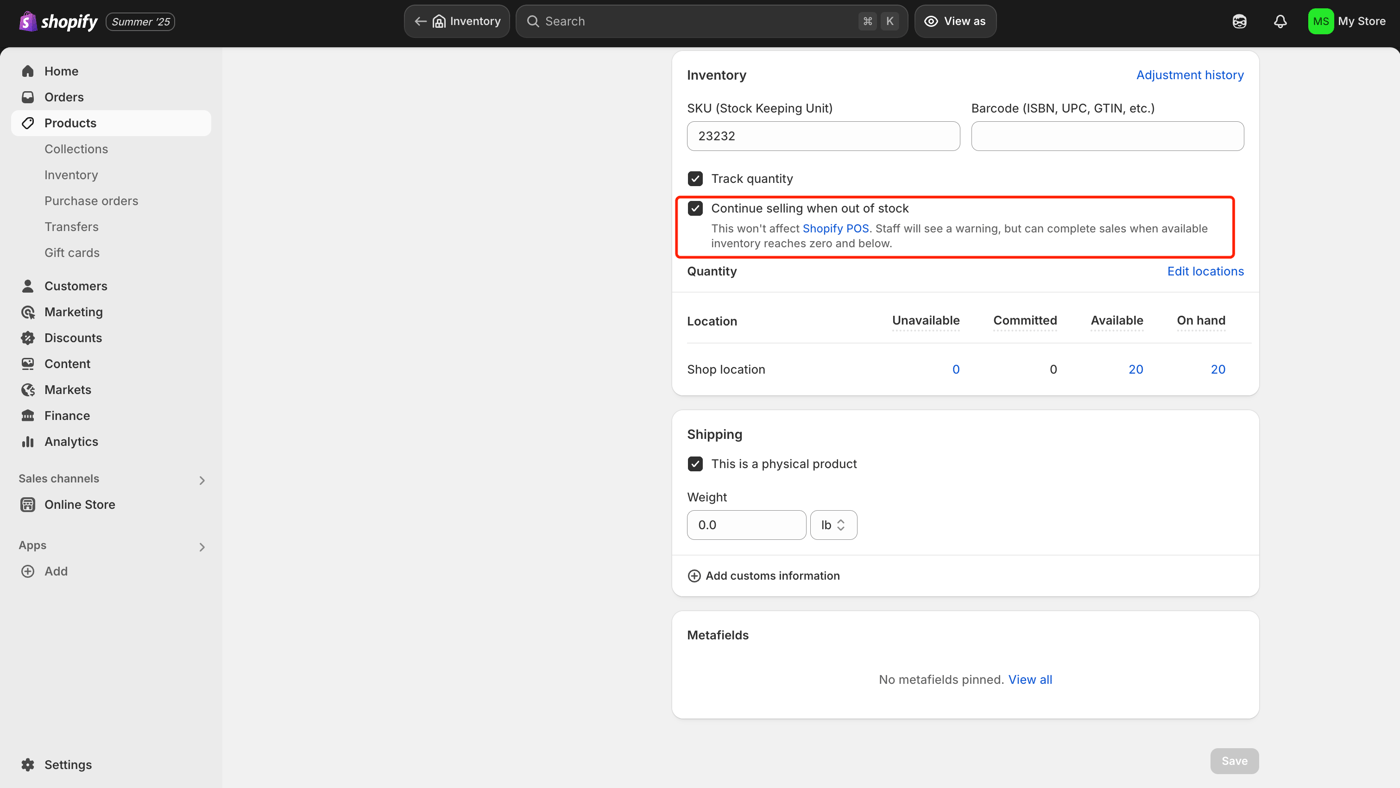
- Save each variant separately
Business Considerations:This method enables backorder functionality. Ensure you can fulfill orders within reasonable timeframes and communicate expected delivery dates clearly to customers. Consider adding "Notify Me" buttons for better customer experience and setting up automated restock notifications.
Location Impact:If you have multiple inventory locations, overselling behavior depends on your location priority settings and available inventory at each location.
When to Use This Method:Ideal for businesses with reliable supply chains, print-on-demand products, pre-order items, or digital goods where immediate fulfillment isn't critical. Also useful for maintaining sales momentum while awaiting restocks.
Prevention: Strategic Inventory Management Framework
Preventing out-of-stock display issues requires a systematic approach to inventory management. Implement these evidence-based practices to maintain accurate stock visibility:
Core Inventory Controls
Weekly Inventory Audits: Schedule systematic reviews to identify discrepancies between actual stock and system records, focusing on high-volume products and seasonal items.
Automated Inventory Synchronization: Deploy inventory management solutions that maintain real-time sync across all sales channels, preventing overselling and stock display errors.
Standardized Product Configuration: Establish consistent variant settings for all new products, including quantity tracking activation, location assignment, and overselling preferences based on your fulfillment strategy.
Advanced Inventory Strategies
Location-Based Fulfillment Optimization: Configure location priority settings to ensure orders route to the most efficient fulfillment center while maintaining accurate stock visibility across all locations.
Market-Specific Inventory Planning: For international sellers, implement separate inventory strategies per market, considering demand patterns and shipping zone restrictions (especially important given Shopify's 2024 fulfillable inventory changes).
Third-Party Integration Monitoring: Regularly audit connections between Shopify and external services to ensure proper data synchronization and prevent display inconsistencies.
Operational Excellence
Staff Training Programs: Ensure all team members understand proper inventory management procedures, common troubleshooting steps, and the impact of configuration changes on customer experience.
Customer Experience Testing: Implement regular testing protocols for the complete purchase process to identify and resolve issues before customers encounter them. Don't forget to optimize your Continue Shopping button to keep customers engaged even when they encounter stock issues.
Conclusion: Securing Your DTC Revenue Stream
Out-of-stock display issues directly threaten your DTC brand's revenue and customer trust. The seven proven solutions outlined above address the most common scenarios. If you've tried these methods and still need assistance, contact Shopify support for personalized help.
Prioritize Solutions Based on Impact:Start with variant configuration (Method 2) and location optimization (Method 4), as these address the most common root causes affecting 80% of merchants.
Implement Preventive Measures:Long-term success requires systematic inventory management practices, regular audits, and consistent product configuration standards. These proactive measures protect your brand from revenue loss and maintain customer confidence.
Take Immediate Action:Every day phantom stock issues persist, you're losing potential sales and damaging customer relationships. Implement these solutions today to safeguard your Shopify store's profitability and competitive position.
Frequently Asked Questions
Why do my products show out of stock when I have inventory?
This phantom stock issue typically occurs due to variant tracking misconfiguration, international market restrictions, shipping zone misalignment, or third-party app integration failures. The product appears unavailable despite having actual inventory because Shopify cannot determine which inventory is available for sale in specific markets or variants.
How long does it take to fix out-of-stock display issues?
Most out-of-stock display issues can be resolved within 10-15 minutes once you identify the root cause. Simple variant tracking fixes take 2-3 minutes per product, while shipping configuration adjustments may require 5-10 minutes for comprehensive setup. International market configurations can take longer depending on the number of markets you serve.
Should I enable "Continue selling when out of stock" for all products?
Enable overselling only if you can consistently restock within 2-3 business days and clearly communicate delivery timeframes to customers. This feature works best for businesses with reliable suppliers or made-to-order products. For limited inventory items or dropshipping, maintain strict inventory tracking to avoid customer disappointment and potential refund requests.
What happens if my shipping zones don't cover all markets?
Products will appear unavailable in markets without proper shipping zone coverage, even with available inventory. Customers in uncovered regions cannot complete checkout and receive "shipping not available" errors. Create comprehensive shipping zones for all target markets or use "Rest of World" zones with calculated rates to prevent this issue.
How do I prevent inventory sync issues with third-party apps?
Regularly audit app permissions and inventory sync settings to prevent conflicts. Disable unused inventory management apps, ensure only one primary system controls stock levels, and set up monitoring alerts for sync failures. Most inventory discrepancies resolve within 15 minutes of disconnecting conflicting integrations and refreshing data.