
Customer story · Canada
How Everyday Leather previews a personalized birth-flower mousepad
Everyday Leather uses Podifai to combine a birth-month flower, curved and multiline text, and layered live preview on its Custom Mousepad, while broader logo workflows can also collect customer image uploads.
Customer story at a glance
- Business
- Personalized gifts and desk accessories in Canada.
- Products
- A Custom Mousepad personalized with a birth-month flower and text.
- Podifai setup
- An Image Swatch, Text Input, Text Area, curved text, shaped artwork, and a three-layer Live Preview.
About the brand
Why personalization matters for Everyday Leather.
The business
Everyday Leather offers personalized gifts and desk accessories that combine customer text with decorative artwork. On the featured Custom Mousepad - Birth Flower, the shopper chooses one of twelve monthly flowers and supplies a Top Line and Name. The merchant also uses image upload in broader logo-personalization workflows, where customer artwork becomes another part of the product configuration.
Podifai's role
Podifai organizes the mousepad with an Image Swatch, Text Input, Text Area, curved text, shaped artwork, and a three-layer Live Preview. This lets the shopper review one composed design while keeping the month and wording attached to the product. For separate logo products, Image Upload can collect customer graphics; that broader use is merchant-provided context and is not shown in the mousepad setup screenshot.
“Simple, intuitive interface that's easy to use”
“Podifai is very easy to use and works so well. It also looks great on the site.”
Kerstie
Shopify merchant · Everyday Leather
Shopify App Store review
The problem
A visual gift needs the flower and text to make sense together.
The shopper has to choose one of twelve flower designs and provide two lines of text without losing sight of the resulting mousepad.
A personalized birth-flower gift combines a visual month choice with customer-entered text. The shopper needs to see how those inputs work together before adding the mousepad to the cart.
The choices also need to remain compact on the product page: twelve birth-month designs plus two text fields can otherwise become difficult to scan.
What customers see
The documented Custom Mousepad product experience.


The product page
Shoppers see the flower and text together before purchase.
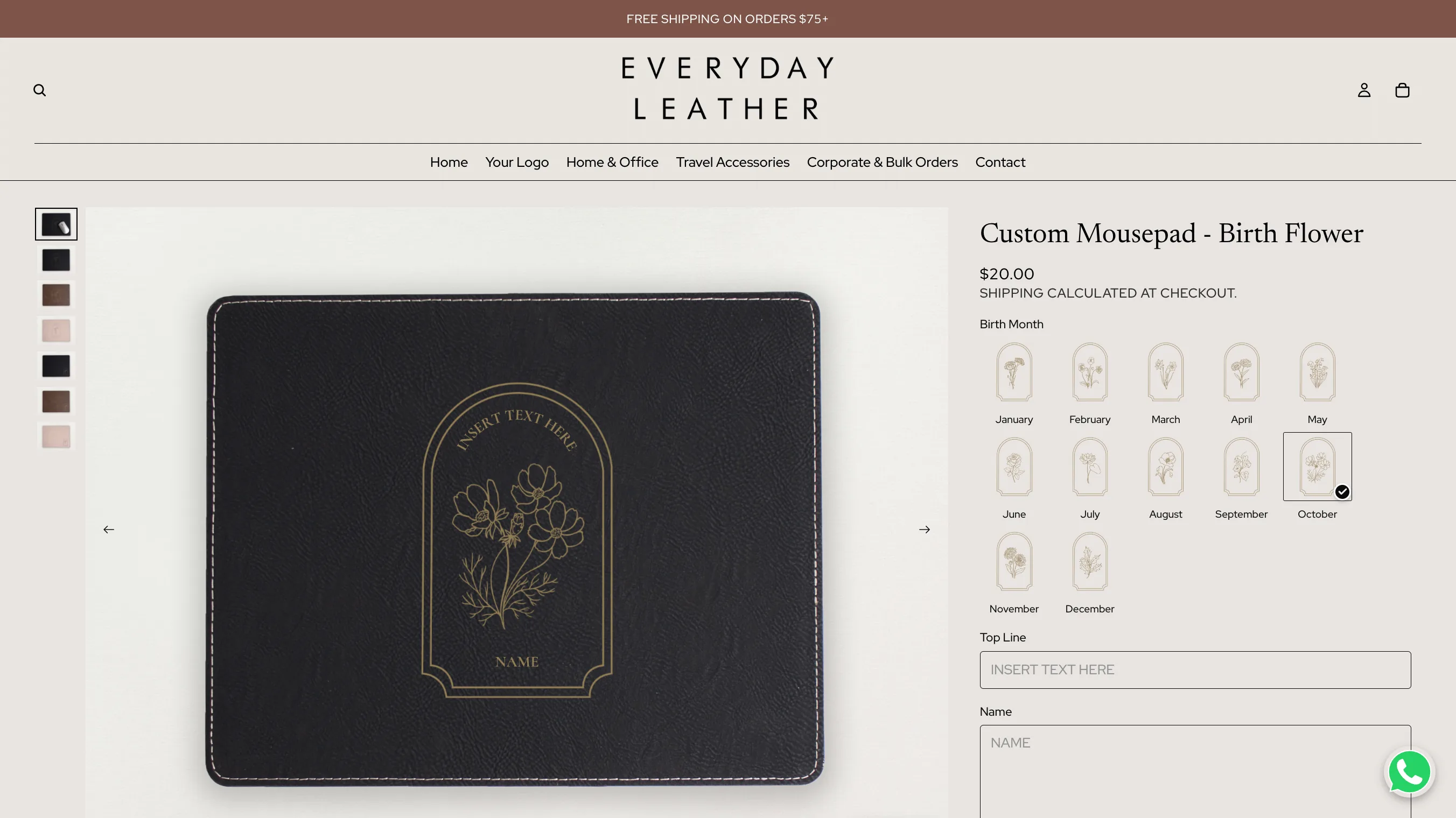
The captured product page shows twelve birth-month image swatches, Top Line and Name fields, and a live preview on the Custom Mousepad - Birth Flower page.
The captured Custom Mousepad - Birth Flower product page shows twelve birth-month image swatches followed by Top Line and Name fields.
The product preview displays the selected flower and text together on the black mousepad, giving shoppers a visual check of the configured design before purchase.
The Podifai setup
How the birth-flower mousepad is configured in Podifai.
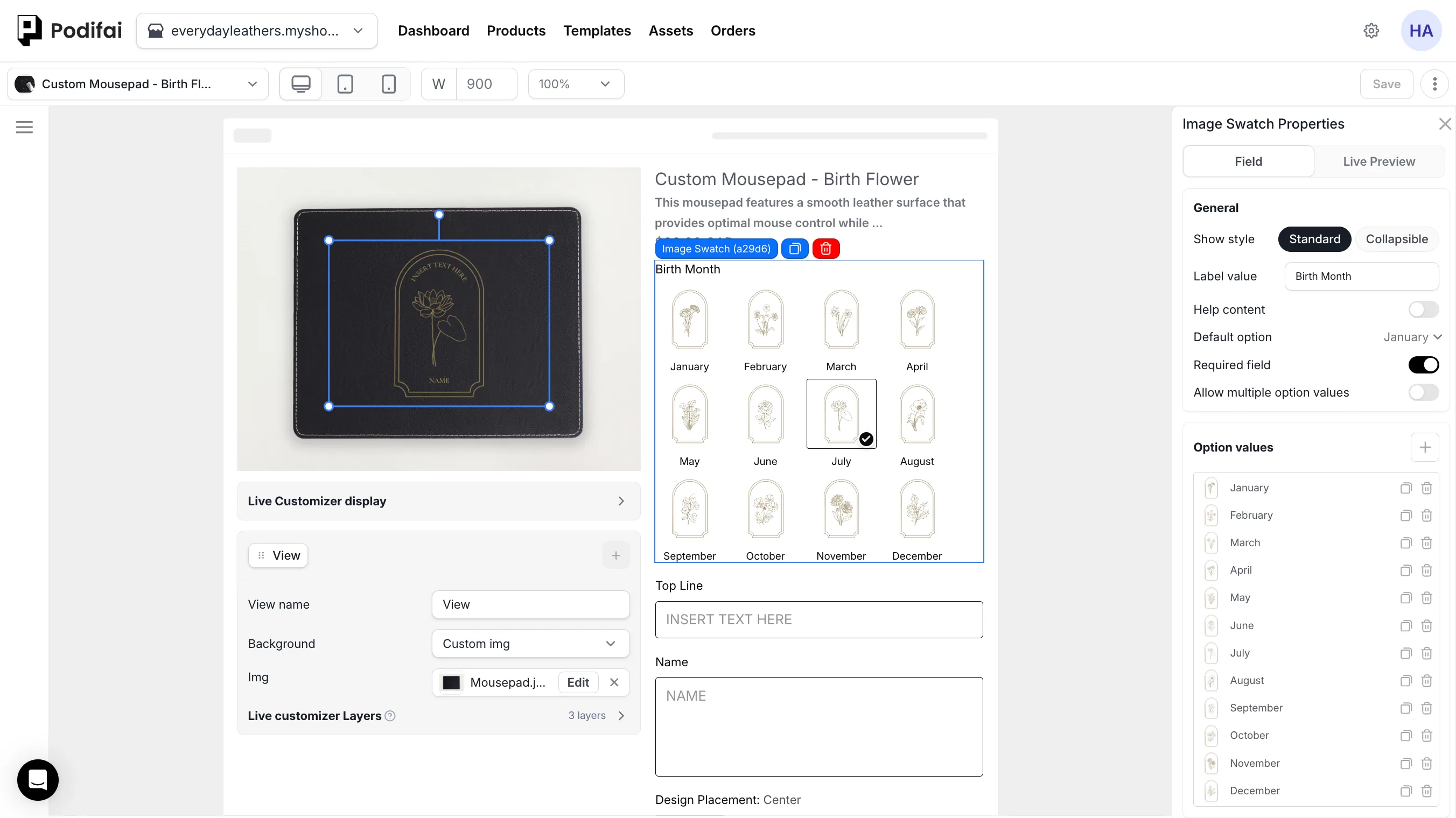
An Image Swatch chooses the month, Text Input and Text Area fields supply the wording, and three preview layers compose the curved text and flower artwork on the mousepad.
Step 01
Image Swatch — birth month
January through December appear as visual flower choices.
Step 02
Text Input — Top Line
A dedicated Text Input controls the upper line shown in the design.
Step 03
Text Area — Name
A taller text field supplies the personalized name or multiline wording.
Step 04
Curved text and shaped artwork
The preview can place text on a curve and combine it with the selected flower artwork inside the design shape.
Step 05
Three-layer Live Preview
The selected flower and entered text are composed through three visible preview layers on the mousepad.
Step 06
Image Upload for logo workflows
Everyday Leather also uses customer image upload in broader logo-personalization workflows; this capability is merchant-provided context and is not shown in the captured mousepad setup.
What the workflow supports
One visible design composed from three customer choices.
The documented flow keeps the birth-month design and both text inputs visible beside the product preview, so the shopper can review one composed design before purchase.
- Image Swatch
- Text Input
- Text Area
- Curved text
- Shaped image layer
- Three-layer Live Preview
- Image Upload in other product workflows
Why this setup works
Value for the shopper, merchant, and order workflow.
- Shopper
- Choose a birth-month flower, enter the wording, and review one composed mousepad design before purchase.
- Merchant
- Combine curved text, shaped artwork, and reusable visual layers while supporting image upload in separate logo workflows.
- Order handoff
- Keep the selected month and customer-entered wording attached to the product configuration for fulfillment review.
This workflow is useful for
- Birth-flower gifts
- Curved text designs
- Layered artwork
- Logo and image-upload products
Direct answers
Questions about the Everyday Leather workflow.
- What does Everyday Leather use this product personalization workflow for?
- Everyday Leather uses Podifai to combine a birth-month flower, curved and multiline text, and layered live preview on its Custom Mousepad, while broader logo workflows can also collect customer image uploads.
- Which Podifai option types are used on the birth-flower mousepad?
- The documented setup uses an Image Swatch for the twelve birth-month flowers, a Text Input for the Top Line, and a taller Text Area for the name or multiline wording. The labels describe Podifai controls rather than inventing product-specific field types.
- How are curved text and the flower shape shown in the product preview?
- The design is assembled through three visible preview layers. Podifai positions the customer text and selected flower artwork into the intended curved and shaped composition, so the shopper can review one combined mousepad design before purchase. See how Live Preview works.
- Can the same merchant collect a customer logo or graphic?
- Yes. Everyday Leather reports using Image Upload for broader logo-personalization workflows. That implementation detail is separate from the captured birth-flower mousepad, and this case study does not claim automatic one-colour conversion or artwork validation that has not been verified.
- What should a merchant test for a similar artwork-and-text product?
- Test the longest allowed text, curved-text spacing, each flower or artwork swatch, transparent and non-transparent uploads, mobile preview size, and the files and values that reach the order. Production artwork requirements should be stated explicitly rather than inferred from the preview.
Build a similar workflow
Learn how to build a related product personalization workflow on Shopify.
Shopify Product Configurator
Explore the Podifai feature or guide related to this customer workflow.
Learn moreLive Preview
Explore the Podifai feature or guide related to this customer workflow.
Learn moreProduct Customizer for Gift Stores
Explore the Podifai feature or guide related to this customer workflow.
Learn more